Search and browse help
Connect Instagram messages
Connect an eligible professional Instagram account so your chatbot can answer direct messages.
Connect an eligible professional Instagram account to answer direct messages with your chatbot. You need access to the account and permission to manage its messages; follow Meta’s requirements and prompts during connection. Messenger and Instagram can be connected independently.
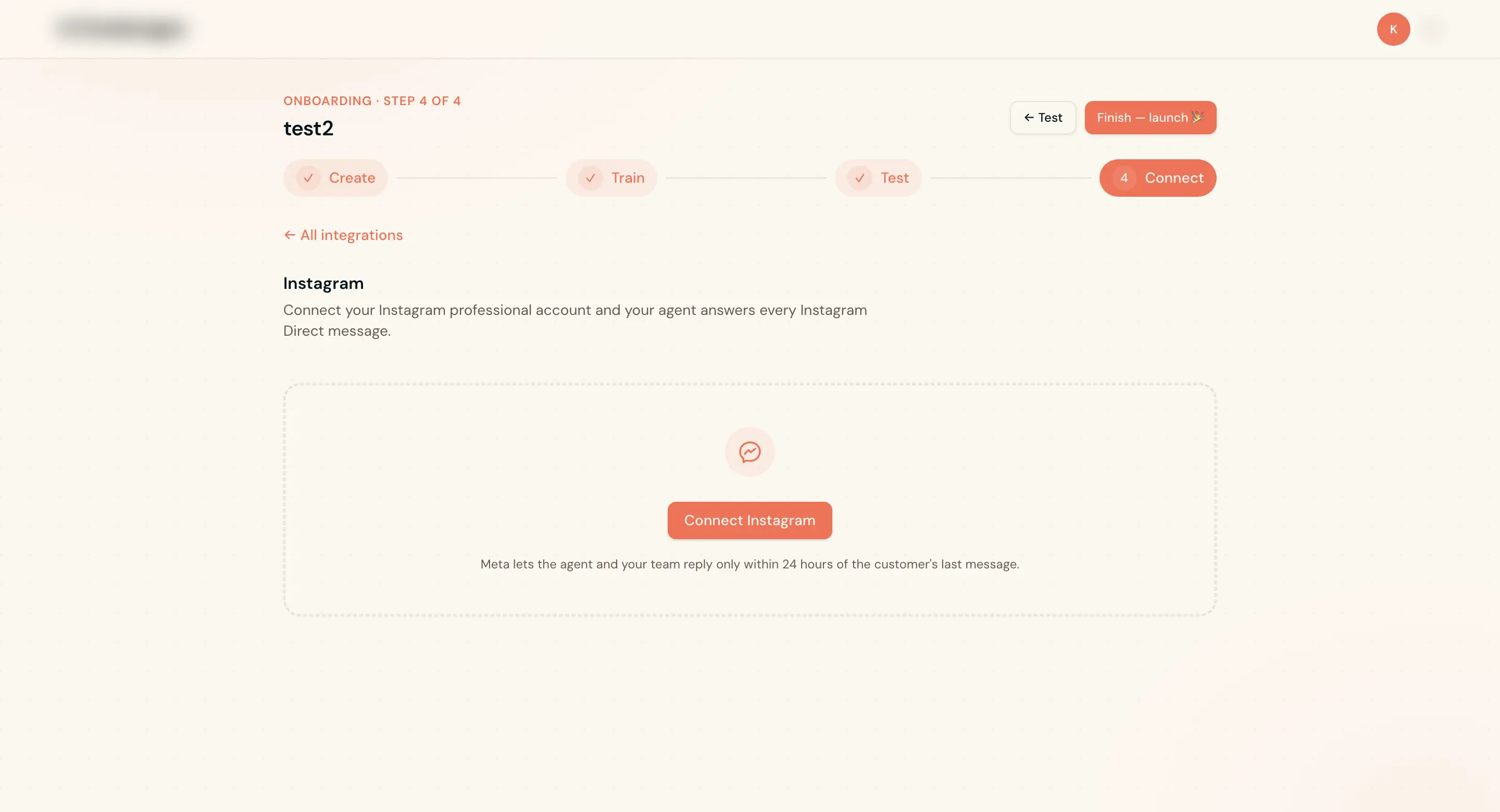
Connect your account
- In your chatbot, open Channels → Instagram. In onboarding, choose Instagram from Connect.
- If prompted, start an eligible trial or choose a plan. Review the card requirement, trial length, renewal price and terms before confirming.
- Select Connect Instagram and complete the hosted authorization. Sign in to the intended Instagram or Meta account, choose the professional account and approve messaging permissions when prompted.
- Return to ChatbotGen and confirm the account and status. If you connected only Instagram, Messenger can remain unconnected.
- Send a direct message from another account. Check that the chatbot replies and the conversation appears in the inbox.
Use All integrations to connect another channel. If the account does not appear, verify that it is professional and that you have the required access and messaging permissions. If Instagram is unavailable in Channels, contact support.
Pause or disconnect
Open Channels → Instagram to pause replies or disconnect the account. With Zernio, disconnecting Instagram leaves an independently connected Messenger Page in place. Meta’s messaging rules and time windows still apply.