Search and browse help
How to add a chatbot to Wix
Install your ChatbotGen chatbot on Wix, publish the changes, and check that visitors can chat on your site.
Before you start
You need permission to edit your site and a trained chatbot.
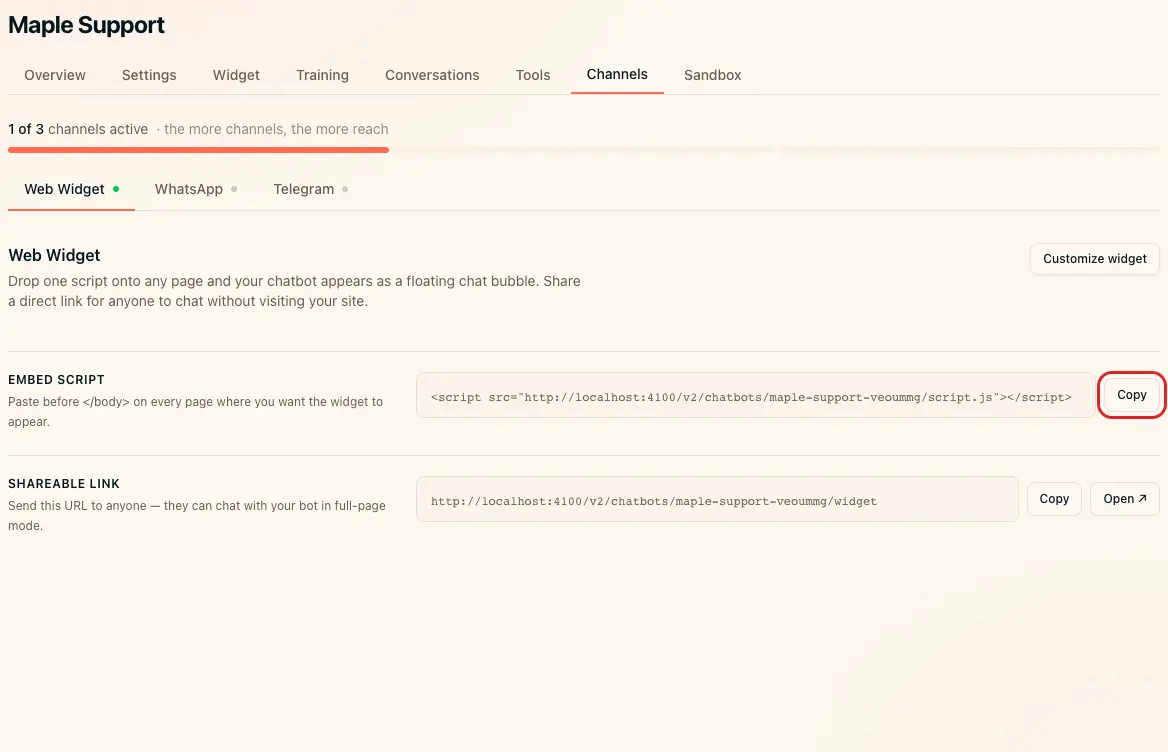
1. Copy your ChatbotGen script
- Open your chatbot.
- Open Channels.
- Open Web Widget.
- Click Copy beside Embed script.
2. Install the script
- Open Settings in your site dashboard.
- Open Custom Code.
- Click Add Custom Code.
- Paste the script and give it a name.
- Choose All pages and Body – end.
- Click Apply.
3. Verify installation
- Open the published site in a private browser window.
- Click the chat bubble.
- Send a question answered by your training content.
- Check the reply.
If the widget does not appear
Check that you published your changes and pasted the script only once. Clear any website cache. Test without browser content blockers.