Search and browse help
Appointment booking
Let customers request an appointment from the web widget, WhatsApp or Telegram. The bot collects the day, time and service, your team gets an email and confirms the slot.
Appointment Booking lets customers ask for a time slot — a visit, a consultation, a table, a demo — without leaving the chat:
- Web widget — the bot shows a form with date and time pickers.
- WhatsApp and Telegram — there is no form. The bot agrees the day, time and service in the conversation, repeats them back, and saves the request.
Every request appears on the chatbot's Appointments tab and your team gets an email to confirm it.
Honest limit: this is a request, not a calendar booking. ChatbotGen does not read your calendar or block the slot. The bot always tells the customer that your team will confirm the time.
Enable and test the tool
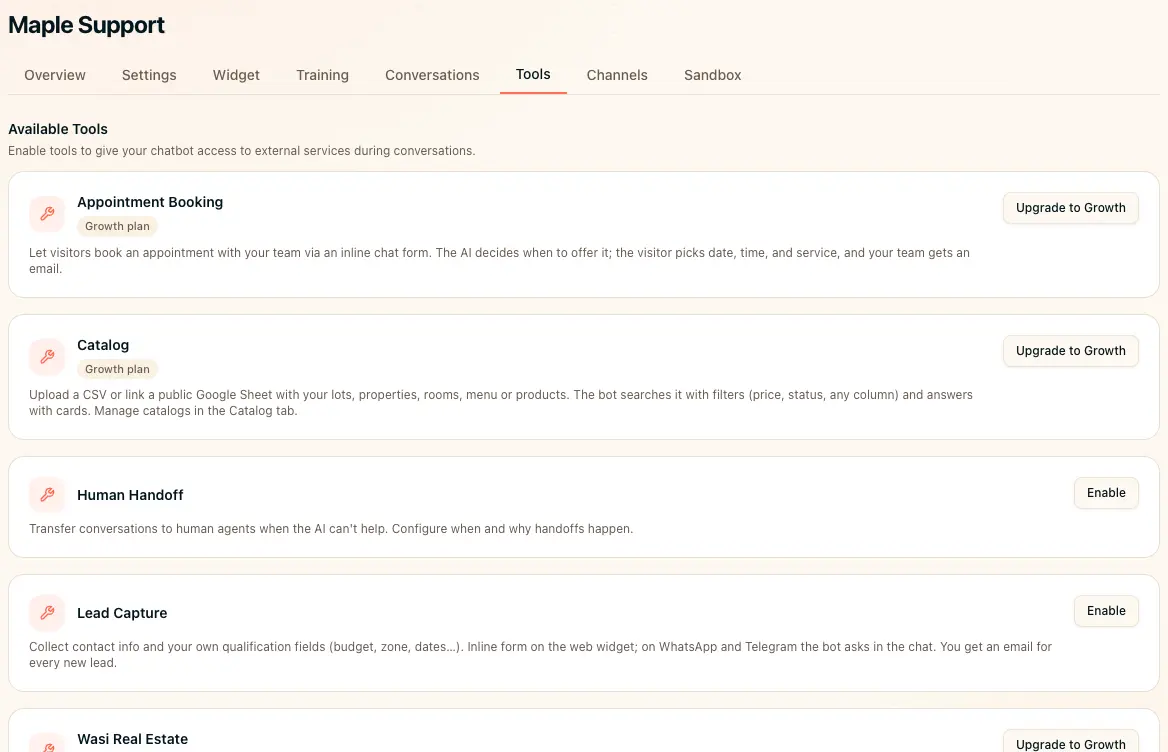
Open Tools
Open your chatbot and choose Tools.
Configure the tool
Click Enable, review the settings below, and save.
Test each channel
Try a conversation on each enabled channel. Check the saved record and email notification.
Before you start
- Plan: Appointment Booking is part of AI Tools, available on the Growth plan and above.
- Channels: web widget, WhatsApp and Telegram.
Enable it on a chatbot
- Open a chatbot and go to the Tools tab.
- Find Appointment Booking and click Enable.
- Review the settings and click Enable Tool.
Configure it
| Setting | What it does |
|---|---|
| When to trigger | When the bot should offer a booking (default: the customer asks to book, schedule, reserve or visit). |
| Form fields | Name, Email, Phone, Notes — each with Enable / Required. On WhatsApp the phone is filled in automatically; on Telegram the username is stored. |
| Services | One per line. The bot picks the closest one. Empty = free text. |
| Business time zone |
E.g. America/Costa_Rica. Used to understand times customers give in the chat on WhatsApp/Telegram ("Thursday at 3"). |
| Success message | What the bot says after the request is saved. |
| Only one booking per conversation | Off by default. |
What the customer sees on WhatsApp
Customer: I'd like to visit the project on Thursday at 3 Bot: Great — Thursday the 23rd at 3:00 pm for a project visit, right? Customer: Yes Bot: Done! The team will confirm the time with you here.
If the date is missing, unclear or in the past, the bot asks again instead of saving.
Email notifications
Every account member gets an email for each request, in their dashboard language (English or Spanish): the time in UTC, the time as the customer said it, service, contact, and links to the conversation and the Appointments tab.
See also
- Lead capture — collect contact info and qualification fields
- Human handoff