Search and browse help
Team inbox
One inbox for every conversation of every chatbot, channel and WhatsApp number. Assign chats, reply without a handoff, pause the AI per conversation, add internal notes, and get push and email alerts.
The Inbox shows every conversation of your workspace in one list: all chatbots, all channels (web widget, WhatsApp, Telegram) and all WhatsApp numbers. Your team uses it to see who answers what, and to make sure the AI never talks over a person.
Open it from the sidebar: Inbox. The red number next to it is the count of conversations that wait for a human.
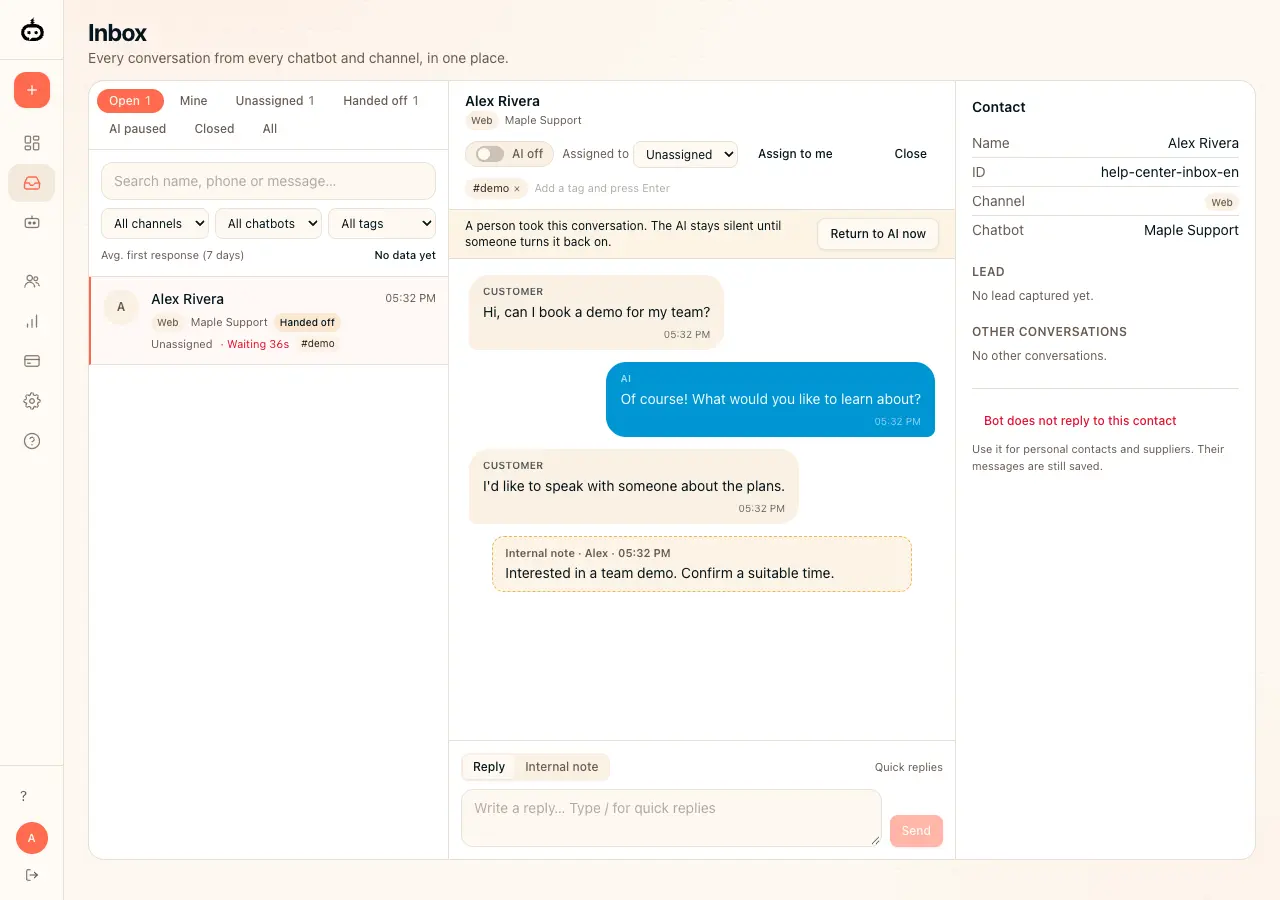
Find a conversation
- Open Inbox.
-
Pick a tab at the top of the list:
- Open — every conversation that is not closed.
- Mine — conversations assigned to you.
- Unassigned — open conversations that nobody owns.
- Handed off — a person took the conversation over.
- AI paused — the AI is switched off in these conversations.
- Closed and All.
- Use the three menus below the search box to filter by channel, chatbot or tag.
- Type in the search box to find a name, a phone number or any text in the messages. Press Enter.
A bold name and a red number mean new customer messages since you last opened the conversation. Each person has their own unread state.
Reply to a customer
You can reply in any open conversation. You do not need a handoff first.
Open a conversation
Click any open conversation in the list.
Write your reply
Select Reply, write your message, then click Send or press Ctrl/⌘ + Enter.
Check AI status
Your first reply assigns an unowned conversation to you and pauses the AI. Turn AI on when you want it to answer again.
The reply goes out on the same channel the customer used: the web widget, WhatsApp or Telegram. When you send a reply:
- the conversation is assigned to you (if nobody owned it), and
- the AI pauses in this conversation, so it does not answer on top of you.
Quick replies
Quick replies are saved texts for the whole workspace.
- Click Quick replies above the reply box.
-
Type a one-word Shortcut (for example
plano) and the Reply text. Click Add. -
In the reply box, type
/and the first letters of the shortcut. Press Enter to insert the text.
WhatsApp official API: the 24-hour window
The official connection is rolling out and is not available to everyone. The following applies only to enabled accounts.
On a number connected through the official WhatsApp Business Platform, WhatsApp only accepts free text for 24 hours after the customer's last message. After that, the inbox shows 24 h window closed — send a template. Pick an approved template and click Send template. Numbers connected with a QR code do not have this limit.
Turn the AI on or off
Each conversation has an AI on / AI off switch in its header.
- AI off — the AI does not answer this conversation. Customer messages are still saved, and you answer them yourself.
- AI on — the AI answers the next customer message. This also ends a handoff.
A yellow bar tells you why the AI is silent:
- A person took this conversation — a handoff happened.
- The AI is paused — someone switched it off.
- The AI is silent until 10:34 because someone replied from the phone — a person answered from the WhatsApp app on the phone. The AI stays silent for 12 hours after the last reply from the phone. Click Return to AI now to end the pause early.
- This contact is blocked — see below.
Assign a conversation
- Open the conversation.
- Choose a person in the Assigned to menu, or click Assign to me.
Assigning a conversation pauses the AI in it: that person now owns the chat. The person you assign gets a push alert and an email. Choose Unassigned to remove the owner.
Add an internal note
Notes are for your team only. The customer never sees them, on any channel.
- Under the transcript, click the Internal note tab.
- Write the note and click Add note.
Notes appear in the transcript with a dashed yellow border.
Tags
Type a tag in the field under the conversation header and press Enter (for example hot lead or visit booked). Click × to remove it. Use the tag menu in the list to see only conversations with that tag.
The contact panel
On a wide screen the contact panel is on the right. On a phone, click Contact. It shows:
- the name, phone or ID, channel and chatbot,
- the lead that this conversation captured, with all its fields,
- other conversations of the same contact in your workspace (for example, with your second WhatsApp number).
Bot does not reply to this contact
Use this for personal contacts, suppliers or anybody who is not a customer.
- Open the contact panel.
- Click Bot does not reply to this contact.
The block covers every chatbot and number of your workspace. Their messages are still saved in the inbox; the AI never answers them. Click Let the bot reply again to remove the block.
First response time
Under the filters, Avg. first response (7 days) shows how long customers waited for a person's first reply, on average, over the last 7 days. The clock starts when a customer starts to wait for a human (a handoff, or a message while the AI is off) and stops at the first reply from your team — from the inbox or from the phone. Each conversation also shows its own first response time in its header.
Alerts on your phone and computer
The inbox alerts you by push notification and email. It never sends alerts over WhatsApp.
You get an alert when:
- a new handoff happens (push to everyone; email to everyone who keeps it on),
- someone assigns a conversation to you (push and email),
- a customer writes in a conversation assigned to you (push at once; an email if nobody answers within 10 minutes).
Turn on push alerts
- Go to Settings → Notifications (or click Turn on push alerts on this device in the inbox header).
- Click Turn on push alerts on this device and allow notifications in the browser.
- Do this once on every device you use (computer, phone).
On an iPhone or iPad, first add ChatbotGen to the Home Screen: open the site in Safari, tap Share → Add to Home Screen, then open ChatbotGen from the Home Screen icon and turn on push alerts there.
Choose your emails
In Settings → Notifications → Team inbox alerts, turn each email on or off: new handoffs, conversations assigned to you, and customers waiting on your conversations. Click Save. These settings are per person.
Use it on your phone
The inbox works in the phone browser. You see the list first; tap a conversation to open it, and tap the back arrow to return to the list. Add it to your Home Screen to open it like an app.